

| Connect to an OSX shared printer. |
Do you have some kind of fancy USB Printer connected to your OS X computer? This guide will show you how to print to an OS X shared printer, from System 7! This guide assumes that your OS X Mac and your System 7 Macintosh are both connected to the same network via TCP/IP.
First, be sure to download and install Open Transport and the LaserWriter 8 updates. We strongly suggest you update your System 7 if you haven't already. All of the updates can be found at the Important Updates page. Restart after all updates.. |
| Step 1 |
The first step, of course, is to make sure you have a Printer installed on your OS X computer. Once you have at least one printer already installed and working on your OS X machine, go to System Preferences, and choose "Print & Fax".
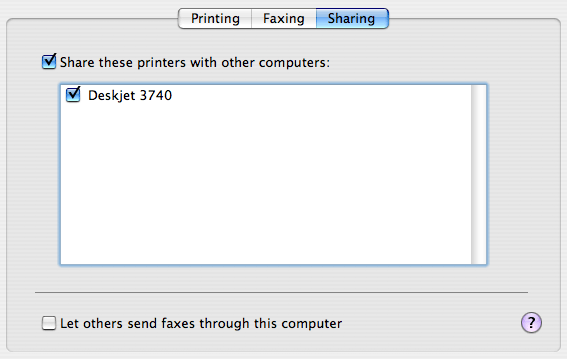
Click on the "Sharing" tab, and check "Share these printers..." as well as any printers you'd like to share. You can share as many as you'd like:
|
| Step 2 |
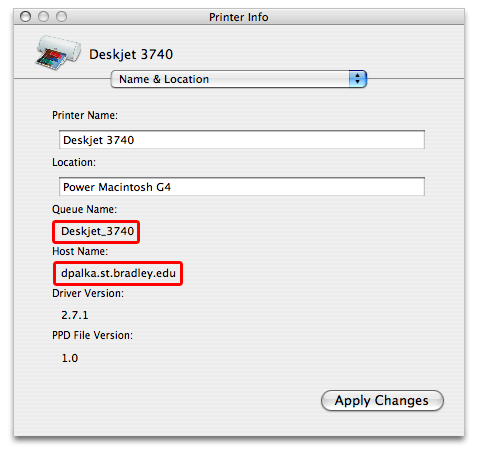
Next, click the "Printing" tab, select the desired printer, and click on the "Printer Setup..." button. In the new window that appears, choose "Name & Location" from the drop down menu.
When the information appears, make a careful note of the Queue Name and Host Name values. You will need these in a moment. After this step, you can quit System Preferences.
 |
| Step 3 |
Now, on your System 7 Macintosh, find the "Desktop Printer Utility" that was installed with LaserWriter 8. It usually can be found in the "Apple LaserWriter Software" folder, inside the "Apple Extras" folder on your hard drive.
 |
| Step 4 |
Launch Desktop Printer Utility. You will be presented with the window below.
 |
| Step 5 |
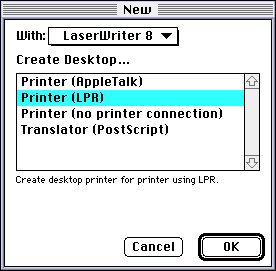
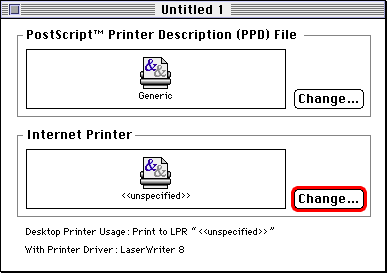
Choose "LaserWriter 8" from the pull down menu, and highlight "Printer (LPR) from the list of choices. Click on OK. In the new window that appears, click on the lower of the two "Change..." buttons.
Note: It is not necessary to change the Printer Description File. "Generic" works just fine.
 |
| Step 6 |
In the dialog that appears, you must now enter your printer location, and queue name that you had gotten from System Preferences back on your OS X machine.
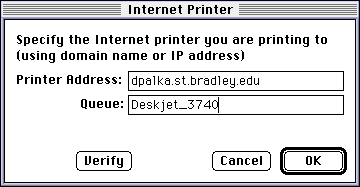 |
| Step 7 |
Click the "Verify" button to make sure your printer values are correct. If they are, a message that says "The printer is located at..." will appear.
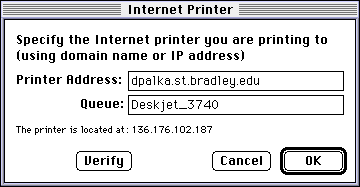 |
| Step 8 |
Click OK once your printer has been verified. Then close the Desktop Printer Utility. You will be presented with a save prompt. Save your printer to the desktop. I named mine "Deskjet 3740" but you can name yours whatever you want.
Once you do this, a new printer will appear on your System 7 desktop, to which you can print from any program, so long as your on the same network as your OS X computer. |
| Conclusion |
You can also add as many printers as you want, so long as they're all shared by your OS X Mac. Best of all, you shouldn't ever have to try and find System 7 drivers for your printers. If they support OS X, they automatically support your System 7 Macintosh as well.
I have gotten a few reports of certain printers not working with this, but the overwhelming majority seem to. |


Copyright 2026 System7Today.com
.
The Apple Logo, Macintosh, Mac OS, and others property of Apple Computer, Inc.
This site is in no way affiliated with Apple Computer, Inc. |