
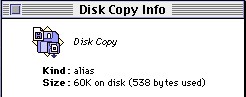
 Automatically launch apps when starting Inside your System Folder is a folder called "Startup Items". Place an alias of an app you'd like to start when your Mac finishes booting. It will open automatically. Auto-mount network devices Make an alias of a shared folder from another Mac or a file server after you mounted it. Double-Clicking the alias will automatically mount the server or folder in the future; if a password is required, the AppleShare log-on dialog box will appear. Very neat if you want to automatically mount e.g. a shared folder when starting up your Mac. (see above) Easy network setup If you're running a home network and push files between your Macs you can make your life easier by making an alias of the shared drive and copy it to e.g. a floppy disk. Stick it into the other Mac, double-click the alias, and you'll connect to your Mac's hard disk. Make your main folders appear in the dialog boxes of apps Keeping a clean desktop without a lot of aliases or folders cluttering it is a challenge. So how to keep them away from the desktop while having them visible in an open or save dialog? Create an alias of each file or folder you want to be listed in your dialog boxes. Move the aliases to your desktop, and then use Resedit (or something like DiskTop) to make them invisible. After a restart, these folders no longer show up on the desktop but they are listed and accessible from within the dialog boxes of your apps when you select the desktop. Load a control panel before an extension There might be a time when you'd want a control panel to load before an extension. Thanks to aliases, that's easy. Make an alias of the control panel, leave the alias in the control panel folder, then put the "real" control panel into your extensions folder. This way you get to load the control panel before everything else rather than having to wait for all the extensions to finish loading first. Cramming more aliases onto the desktop You want all of them on your desktop? Well, you can at least save some space by using ResEdit. Open the alias in it, copy the small icon from the ics8, ics4, or ics# resource. Then paste this icon in as the new icon in the alias's Get Info dialog box. Then give it a short 3-4 letter name like "apps", "game", "inet" or something. => Got another alias tip? Please let us know by posting it on our forums!
Copyright 2026 System7Today.com
. |



